
Services -> Call Matching
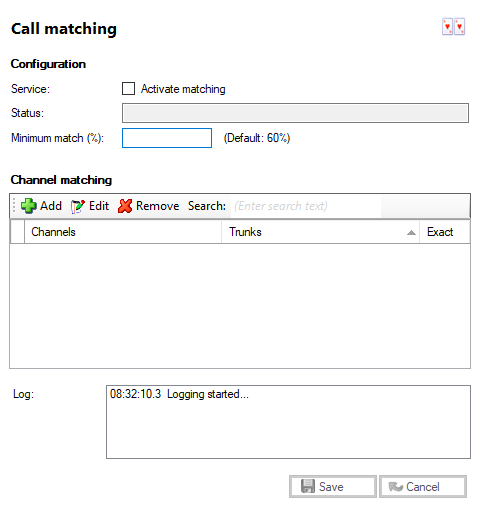
Call matching allows a trunk-side voice recording to be matched to the extension it was answered on. The 'Channel matching' section is where the channels of the voice recorder and the IDSN trunks are tied together.
Activate matching

Enable call matching in HiHi Vision by ticking the 'Activate matching' check box.
Status

The status of the call matching service is displayed in the 'Status' text box.
Minimum matching

You can enter a value in the 'Minimum match (%)' text box to indicate the lowest percentage a match must achieve to be valid; 60% is the default value used if the box is left blank.
Add button

Click the 'Add' button to create a new match. Enter each channel and the corresponding trunk into the 'Channel' and 'Trunk' text boxes. Tick 'Exact channel/trunk matching only' if you want to make sure only 100% matches are used. Add any useful notes to the 'Notes' section then click the 'Save' button to store the match or 'Cancel' to discard it.
Edit button

The matches that have already been created can be administered from this page by selecting them in the list and clicking the 'Edit' button.
Remove button

To delete a match, select it from the list and click on the 'Remove' button.
Search

You can search for listed matches by entering text into the 'Search' box. The search function looks through the information in the item list.
 Report this page